How to disable generative AI in python notebook environments (ipynb)
This is a simple, practical guide for fellow educators who are trying to teach introductory topics using python notebooks when environments like google colab end up immediately giving students the opportunity to cheat.
This guide has come about from a simple problem: notebooks that I inherited for teaching Introduction to Data Science in python to undergraduate students all now have generative AI turned on by default in Google Colab. This short guide disables generative AI in ipynb files (which can be used in a variety of environments but this solution only works for Colab).
I won’t dig too much into why autocomplete using generative AI is counter to learning fundamental concepts. If you don’t agree with me on that, I’m not using the real estate of this post to convince you otherwise. But for fellow data science educators who come here to this post, below is my solution for creating a single notebook that students copy into their own environments, which will have AI disabled by default for them. You’ll still want to tell students (especially if there is a course policy against generative AI use) that they still need to check where to turn off these features if they, for some reason, still see them (this is especially true if they use a local environment out of VS Code or equivalent instead of Colab).
And to be clear: The way the below solutions work is because I expect students to take my existing ipynb files and copy the file itself into their own Colab environment. If students copy cells from an open notebook into a notebook or environment of their own, this solution will not work. The simple thing we are doing here is disabling generative AI in the metadata section of the ipynb file, which will be carried into any new Colab environment where that file (or copies of that file) propagate.
Option 1: Disabling gen AI in the file’s metadata
The metadata + details in the file for the very first notebook that students see looks like this:
{"nbformat":4,"nbformat_minor":0,"metadata":{"colab":{"provenance":[{"file_id":"1IqPnGOHsS5XV49SeB7Bgza91pOAK9Ztc","timestamp":1787760836099}],"generative_ai_disabled":true},"kernelspec":{"name":"python3","display_name":"Python 3"},"language_info":{"name":"python"}},"cells":[{"cell_type":"markdown","source":["## Cal Poly, San Luis Obispo\n","\n","## DATA 3301: Introduction to Data Science\n","\n","\n","### Lecture 1: Notebook Zero"],"metadata":{"id":"1ON93brE4GD8"}},{"cell_type":"markdown","source":["## Before You Do Anything Else!!!\n","\n","**If you are viewing this notebook on Google Colab**:\n","\n","This is the Instructor's version of this notebook. Any changes that you make cannot be saved and will be lost when you close the browser.\n","\n","If you want to add code or modify the contents of this notebook in any way and save your work, **you need to save a copy of this notebook** to your personal Google Drive. To do this, go to File > Save a copy in Drive.\n","\n","**In fact, this should be the first thing you do whenever you open up a notebook that someone shares with you.**"],"metadata":{"id":"lygz8K1J4WWt"}},{"cell_type":"markdown","source":["# Notebooks Consist of Cells\n","\n","## There Are Two Main types of Cells:"],"metadata":{"id":"oB7_MKKiJjo9"}},{"cell_type":"code","source":["## Code cells let you write and execute Python code\n","\n"],"metadata":{"id":"ooRyI1AzJ4bw"},"execution_count":null,"outputs":[]},{"cell_type":"markdown","source":["\n","## Text Cells let you write text\n","\n","... and use mathematical formulas:\n","\n","$$ distance(x,y) = \\sqrt{\\sum_{i=1}^n (x_i - y_i)^2}$$\n","\n"],"metadata":{"id":"uDWQN8XaJjrU"}},{"cell_type":"code","source":[],"metadata":{"id":"JBDeJoapJ0gu"},"execution_count":null,"outputs":[]}]}
The important line is here:
"metadata": {
    "colab": {
    ...
    "generative_ai_disabled": true
    ...
If you open your file and add this, you’re good to go!
Option 2: Disabling using Colab’s interface
The other way to get to this setting is how I initially found it, which was through Colab’s own settings (once I opened the file). This is also a great way to quickly verify with a student if their current notebook has genAI turned on.
Edit > Notebook Settings > AI Assistance > ✅ Hide generative AI features
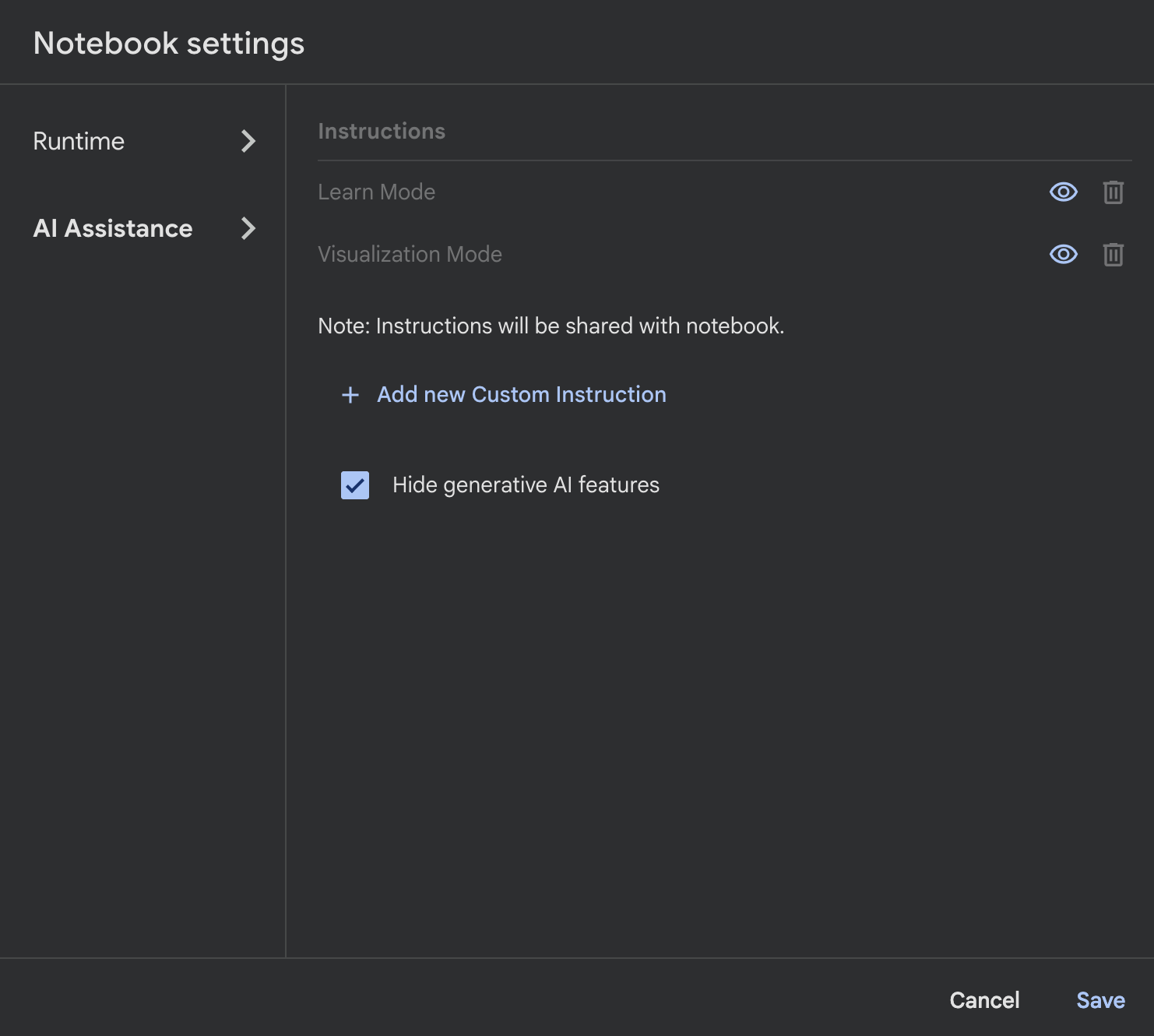
Once you set this and the file is saved, the metadata (from option 1 above) is populated into the file. Now, students who copy the file (using File > Save a copy in Drive or simply by copying the actual ipynb file itself via downloading, copying, or otherwise) will get this setting too.
A new age: refactoring against Gen AI for the sake of student learning
The great thing is that we can easily populate this metadata property into every ipynb file used as course materials in Colab (assignments, in class labs, my lecture note-notebooks, etc), which is fantastic. The frustrating reality is twofold: one, that students can easily turn this back on or use another environment (not much I can do to stop this) and two, that the feature was simply added in silently as opt-in. Rather than a lack of generative AI being treated as the default state, now every single notebook opened in google Colab will have this turned on by default.
Should I migrate away from Colab? Perhaps. The dream is that every student has a fantastic personal machine and we get them set up with local environments of their own. But the reality is that the cloud computing part of Colab is still useful, as well as the general integration in Google’s ecosystem. (So should I swap to Jupyter? Maybe! But for now, sharing google drive links to my saved files and having them open by default in Colab is so painless of an experience that for an introductory course, I’ll be sticking to Colab. Ironic though… some parts of learning should be good pain while other pain I actively work to take out of the educational experience.)